How to Check iCloud Storage on iPhone/iPad/Mac
If you prefer to use iCloud service for storage space, backups and syncing your precious data, then your iCloud account can pack quickly. How to see that how much free (Available) space left in your iCloud storage and which app are consuming it. Through this article, we will give you complete tutorial about how to check iCloud storage in iPhone/iPad and MacBook with following simplest steps.
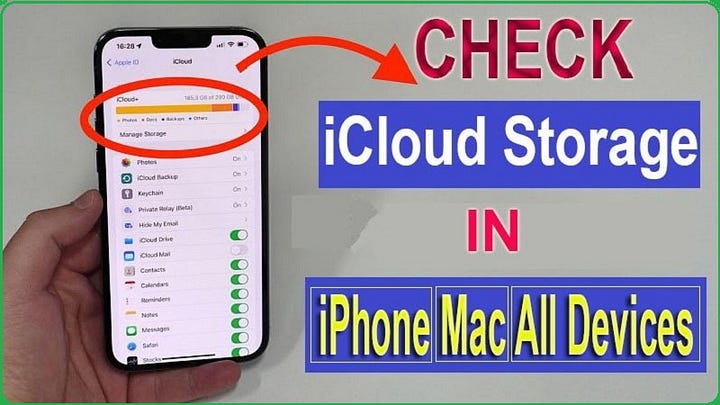
Apple’s cloud platform offers an iCloud feature that lets you helps to keep save and synchronized data. This includes such as videos, images, notes, contacts, document and other also saved backups. If you are not getting to aware that where to go to view and manage your stored files then this article for you. This is because, here we will reveal all possible cool stuffs that help to find out that how much memory has been left or available on your iCloud account.
Apple provides the 5GB iCloud storage space as free for a single use. But, if you want to increase your storage space then you have to need pay for starting at $0.99 a month.
How to Check iCloud Storage?
Whenever you may get an alert that your iCloud storage almost packed, otherwise you are unable to do it due to insufficient storage capacity. Then you have to follow few simplest steps to check your free and available iCloud storage capacity on your iPhone/iPad or Mac system with ease; below shown all headlines, you can check them as your needs:
- How to Check iCloud Storage on iPhone/iPad?
- How to see iCloud Storage Space on Mac?
- How to Find iCloud Storage on All Devices Using ‘Web’?
Let’s Get Started!!
How to Check iCloud Storage on ‘iPhone/iPad’?
Checking the iCloud storage capacity is very easiest procedure. Just, you have to follow few simplest steps; below shown all:
- Go to your iPhone’s home page and click on <Settings> icon

- Once opened ‘Settings Page’; tap on your <Apple ID> icon
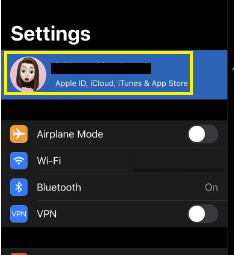
- Next, hit on <iCloud> icon

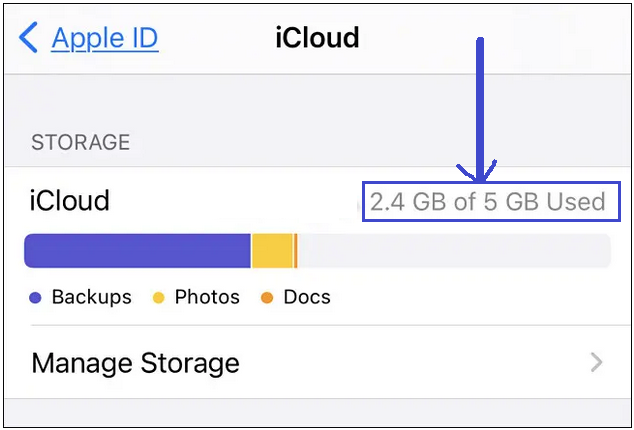
- This will display a visually graph that lets you view entire storage space of your iCloud storage. For example — total amount of storage is 5GB and used is 2.4GB then you have left (Available) space is (5–2.4) 2.6 GB.
- Just below this bar graph, you will see a list of applications and features that are using iCloud. Here, you can turn them on or off to manage and save data to iCloud on your computer.
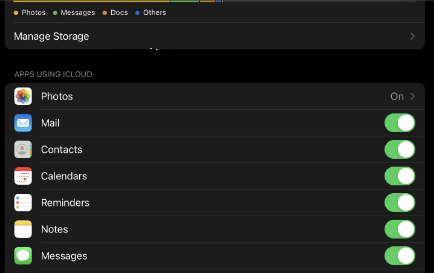
- If you wish to get know that how many space used by specific app then tap on <Manage Storage> at the graph.
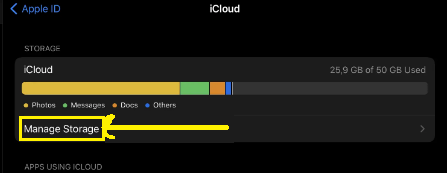
- Then, you will get a list of all apps that consume iCloud storage space and get to change storage space plan as your wish.

How to See iCloud Storage Space on ‘Mac’?
If you are using MacBook then you can also easily to view your iCloud storage space, then follow only few simplest procedure; below mentioned all:
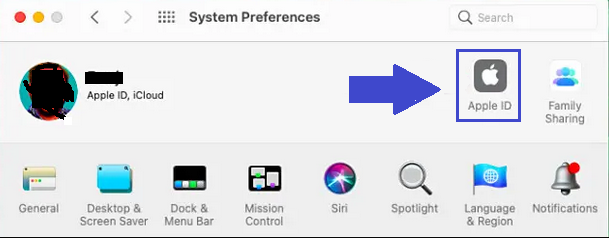
- Go to your top menu bar and click on <Apple Logo> then select the <System Preference> option from elevating context menu.
- On next page, click on your <Apple Icon>, if you haven’t any iCloud account then you have to hit on icon.
- Head over the ‘Apple ID’ page; select the <iCloud> option at the left sidebar and this will display the available (Left) storage space in the graphical bar at the bottom of this list.

- Furthermore, if you want to get know about how much storage space used each iCloud enabled app, then you have to click on the <Manage> button next to the bar graph.
How to Find iCloud Storage on All Devices Using ‘Web’?
However, you have any devices instead of iPhone/iPad or Mac, then don’t worries. Because, you are able to find out your available storage space on your iCloud account; but your device is must be enabling with internet. Here’s how?
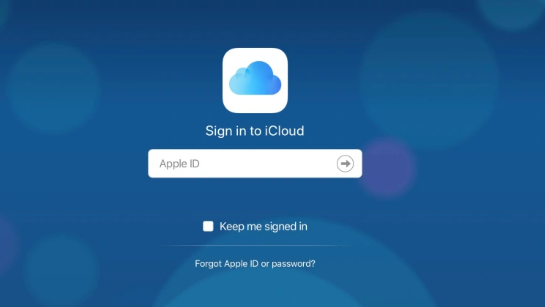
- Go to your web browser and visit at the iCloud.com website.
- Once opened it, you have to log in with credential details of your iCloud Account.
- When iCloud account gets open then you are able to see your available storage GB in iCloud account.
The Bottom Lines
That’s it, you’re all set! We hope you now understand how to check iCloud storage on iPhone, iPad, and Mac without any hassle. It’s quite simple! If this post helped you, please share it with your friends, family members, or relatives over your social network on platforms such as Facebook, Instagram, LinkedIn, Twitter, and more.
If you have any experience, tips, tricks, or query regarding this issue? You can drop a comment!


Comments
Post a Comment